> ## Documentation Index
> Fetch the complete documentation index at: https://docs.nscale.com/llms.txt
> Use this file to discover all available pages before exploring further.
# Instances
An instance is a virtual machine running on Nscale GPU or CPU infrastructure. It lives inside a VPC, is protected by a security group, and runs a base image (pre-provisioned, custom, or snapshot). Instances are the primary way to run workloads that need direct machine access.
**Prerequisites:** Before creating an instance you need a [VPC network](/docs/network/vpc-networks) and at least one [security group](/docs/network/security-groups) in that VPC. Optionally prepare a [custom image](/docs/storage/custom-images) or [snapshot](/docs/storage/snapshots) if you don't want a pre-provisioned image.
## Summary
This page walks you through creating a **compute instance** in the Nscale Console UI—selecting where it lives (project + region), attaching networking and security controls, and choosing what it runs (CPU/GPU + image).
Use this guide if you:
* Manage infrastructure for workloads that need **direct VM access**
* Need to spin up **CPU or GPU** compute in an existing project
* Want a repeatable, UI-driven process for provisioning instances
## Availability
This service is currently only available in the **reserved cloud service environment.**
If you **create or delete more than 30 instances** at the same time, the instance **provision/deletion time will increase**. Instance creation or deletion is **limited to 50 at a time**.
## Requirements
Before you start, you need:
* A project to place the instance into (instances are allocated to projects). If you’re not sure which project to choose, see [Projects](/docs/manage/projects) for more detail.
* A deployment region selected (you choose this during creation, and it appears in the instance details and status)
* A project network (VPC) created
* At least one security group created and associated with that network
**Naming rules:** Instance names must be **unique** and contain only **alphanumeric characters and hyphens**.
## Instance lifecycle
Instances move through the following states:
| State | Description |
| ---------------- | --------------------------------------------------------------- |
| **Provisioning** | The instance is being created and resources are being allocated |
| **Running** | The instance is active and ready for use |
| **Stopped** | The instance is shut down but can be restarted |
| **Error** | Something went wrong during provisioning or operation |
**Actions you can take:**
* **Stop** a running instance to pause it.
* **Start** a stopped instance to resume it
* **Create a snapshot** to save a point-in-time copy of the instance's disk
* **Delete** an instance to permanently remove it
**Deleting an instance is permanent.** All data on the instance's local disk is lost. If you need to preserve the disk contents, [create a snapshot](/docs/storage/snapshots) before deleting.
## Step-by-step
1. In the Console, open your project, then go to **Compute → Instances**
* You should now see the Instances list view
2. Click the **New Instance** button
* You will now see the instance creation form / wizard where you will fill in basic details
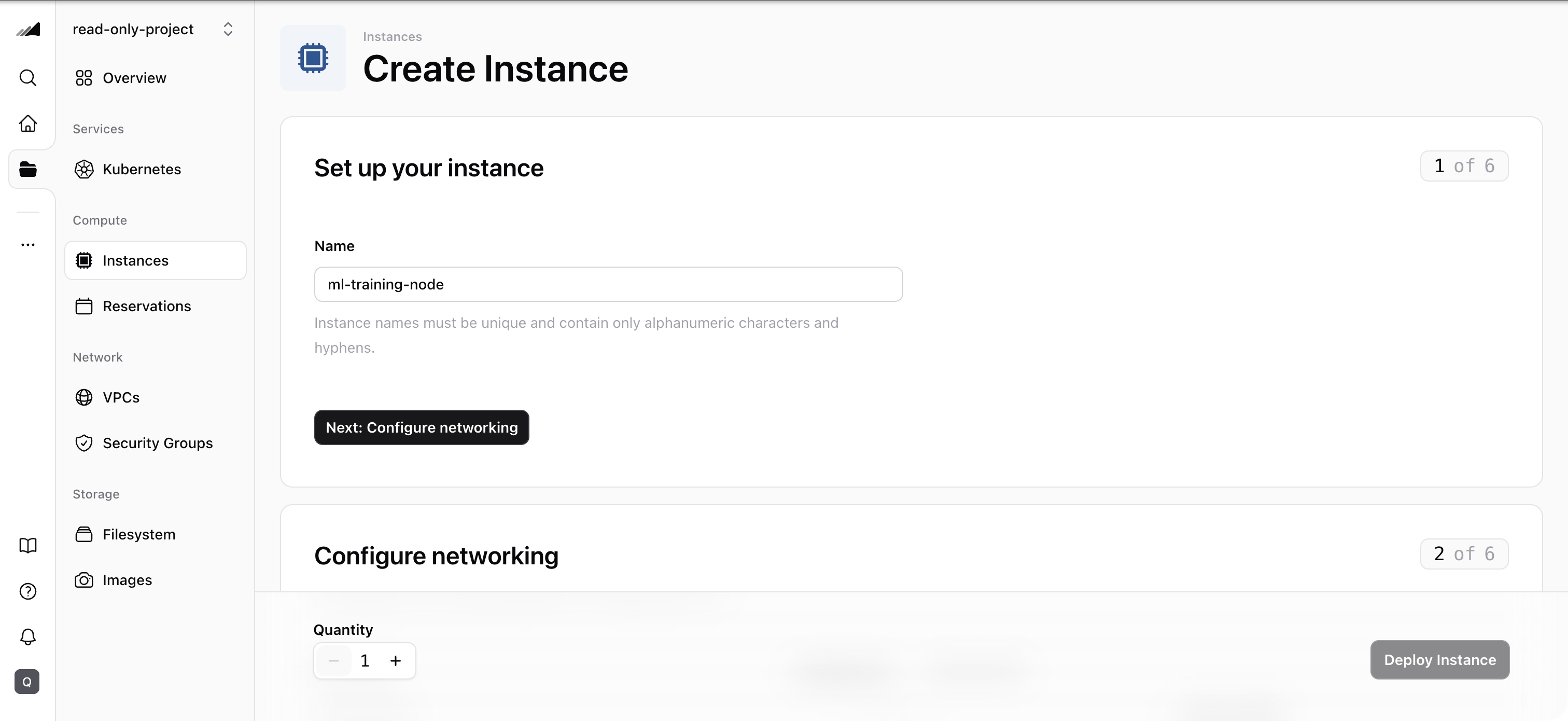 3. Fill in the **basic details**:
* **Name**: must be **unique** and contain only **alphanumeric characters and hyphens**
* **Project**: select the project where the instance will be created
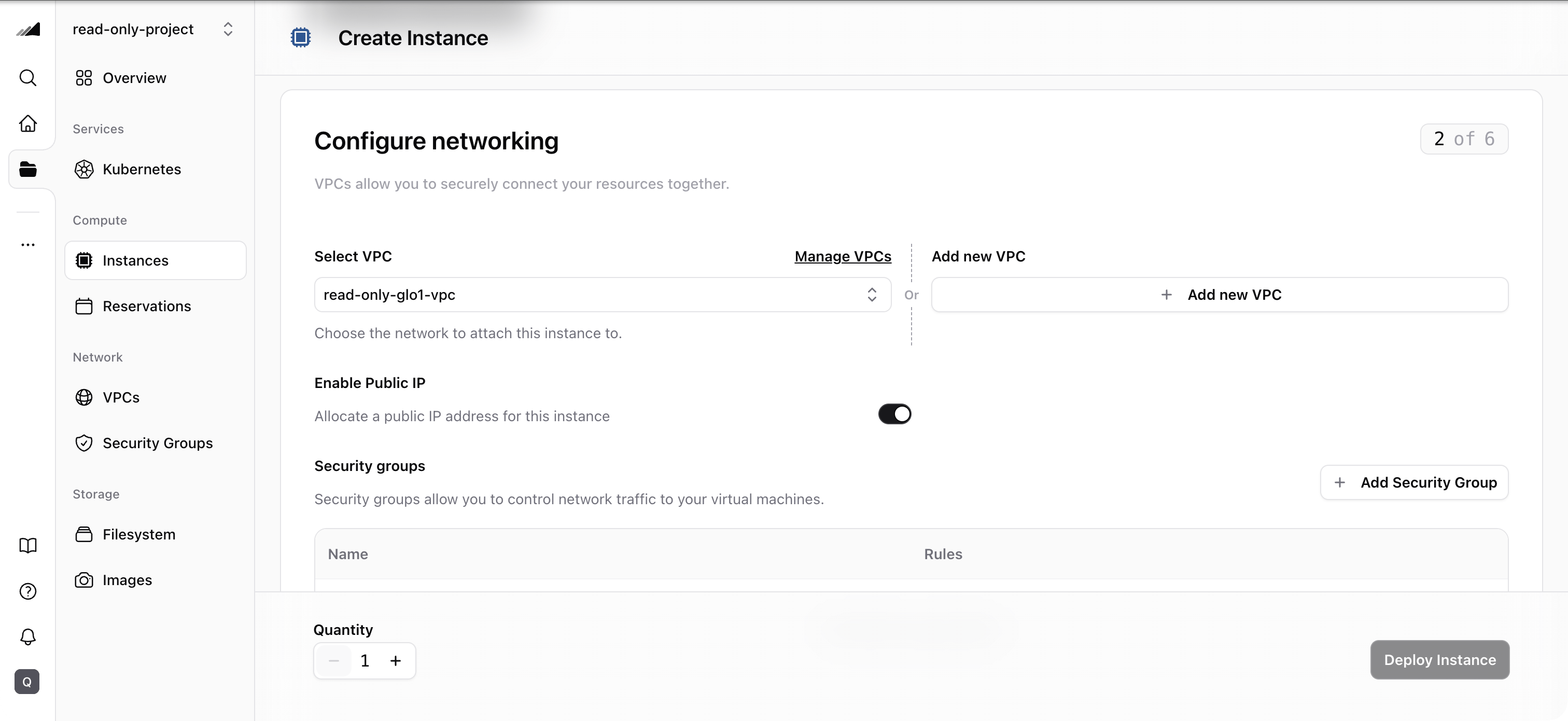
4. Configure networking:
* Select or create a new **VPC (network)** to attach the instance to
* Select or create a new **security group** to control inbound/outbound traffic
* Confirm you've selected the intended VPC and security group before continuing
3. Fill in the **basic details**:
* **Name**: must be **unique** and contain only **alphanumeric characters and hyphens**
* **Project**: select the project where the instance will be created
4. Configure networking:
* Select or create a new **VPC (network)** to attach the instance to
* Select or create a new **security group** to control inbound/outbound traffic
* Confirm you've selected the intended VPC and security group before continuing
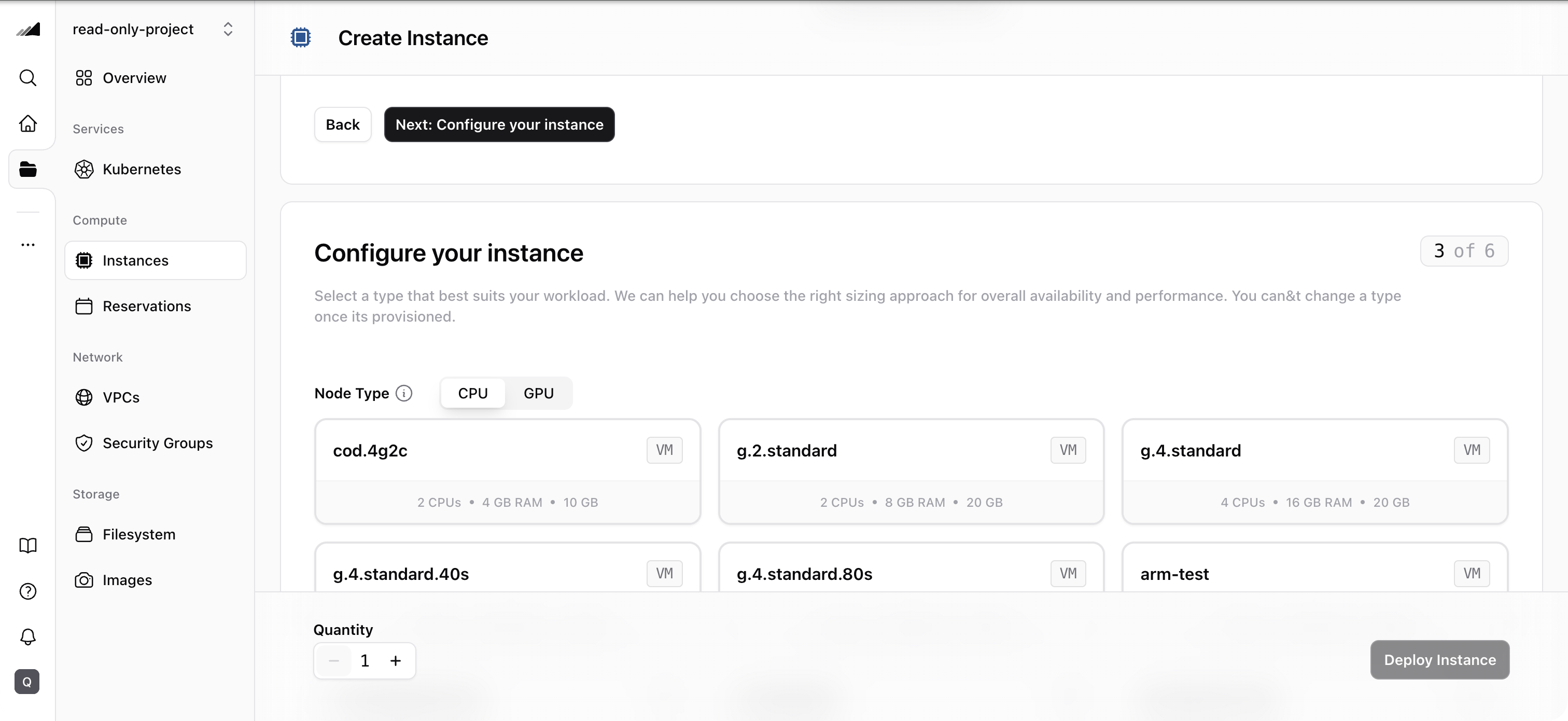
 5. Configure compute + image:
* Choose the **node type**: **CPU** nodes are suited for general workloads, while **GPU** nodes provide accelerated compute for AI/ML training and inference
* Choose the **image** source: **pre-provisioned image**, **custom image**, or **snapshot**
* You should see the selected node type and image reflected in the configuration summary
**Image and node type compatibility:** Images declare a virtualization type — **bare-metal**, **virtualized**, or **any**. Bare-metal images require bare-metal node types and virtualized images require VM node types, while images marked **any** are generic and work with either. The image **architecture** (for example, x86-64 or ARM64) must also match the node type, and the image must fit within the chosen flavor's disk. The platform validates all of this and rejects incompatible combinations.
You can optionally provide a **cloud-config YAML** block to run commands or configure packages at boot time. This uses the [cloud-init](https://cloud-init.io/) standard. For example:
```yaml theme={null}
#cloud-config
packages:
- docker.io
runcmd:
- systemctl start docker
```
If you don't need boot-time configuration, leave this empty.
5. Configure compute + image:
* Choose the **node type**: **CPU** nodes are suited for general workloads, while **GPU** nodes provide accelerated compute for AI/ML training and inference
* Choose the **image** source: **pre-provisioned image**, **custom image**, or **snapshot**
* You should see the selected node type and image reflected in the configuration summary
**Image and node type compatibility:** Images declare a virtualization type — **bare-metal**, **virtualized**, or **any**. Bare-metal images require bare-metal node types and virtualized images require VM node types, while images marked **any** are generic and work with either. The image **architecture** (for example, x86-64 or ARM64) must also match the node type, and the image must fit within the chosen flavor's disk. The platform validates all of this and rejects incompatible combinations.
You can optionally provide a **cloud-config YAML** block to run commands or configure packages at boot time. This uses the [cloud-init](https://cloud-init.io/) standard. For example:
```yaml theme={null}
#cloud-config
packages:
- docker.io
runcmd:
- systemctl start docker
```
If you don't need boot-time configuration, leave this empty.
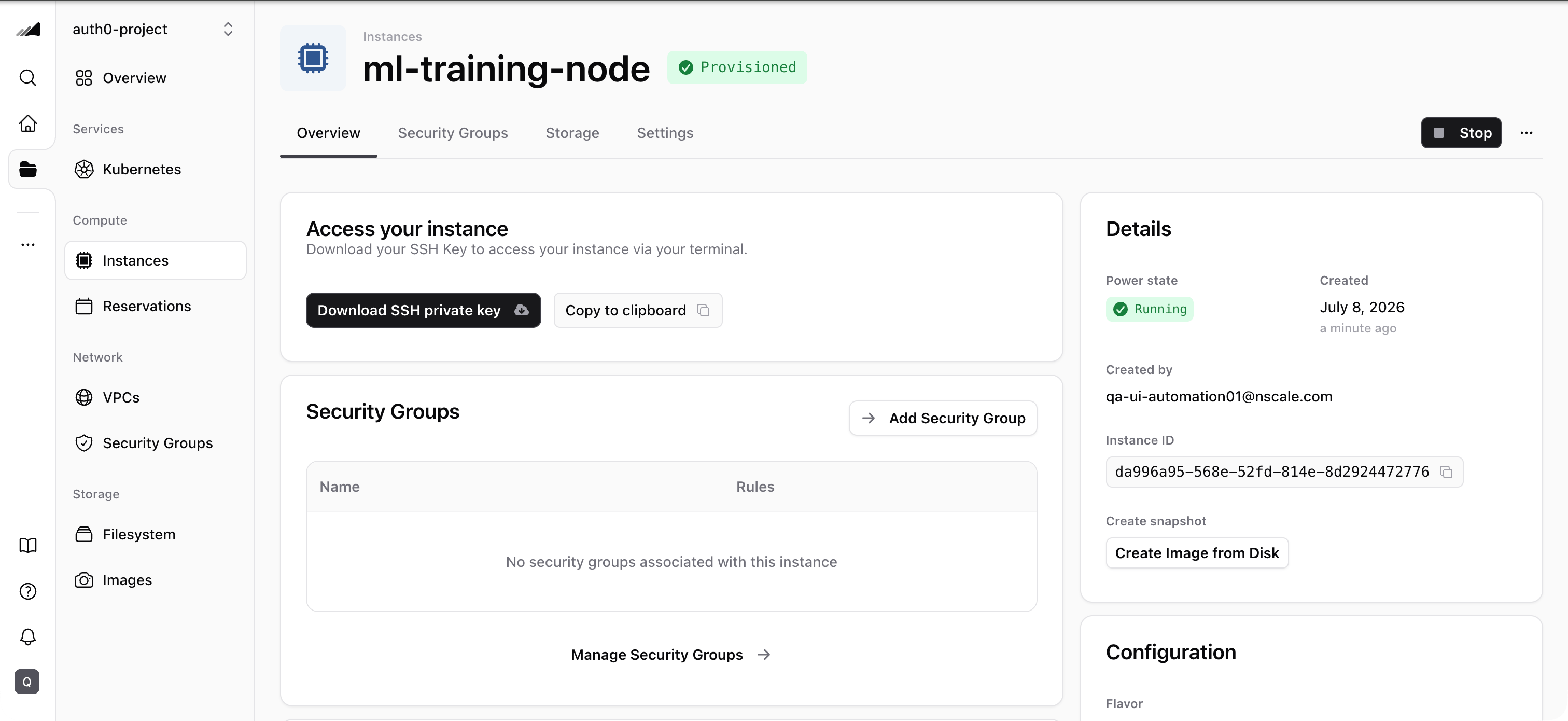
 6. Review the configuration summary and click **Create instance**
* You should be forwarded to the **instance details page** while provisioning is in progress
* From the details page, you can monitor status and **download the SSH key** to access the instance via terminal
6. Review the configuration summary and click **Create instance**
* You should be forwarded to the **instance details page** while provisioning is in progress
* From the details page, you can monitor status and **download the SSH key** to access the instance via terminal
 ## Quotas
Instance creation consumes quota for servers, GPUs, and floating IPs. If your instance uses a **public IP**, one floating IP is reserved from your project's quota. Check your current quota usage in the **Resource Usage** section on the **Dashboard**.
## Common issues / troubleshooting
* **Symptom:** Instance creation is very slow.
**Likely cause:** You are creating or deleting more than 30 instances at the same time.
**Fix:** Wait for the current batch to complete before starting another. Instance creation/deletion is limited to 50 at a time.
* **Symptom:** You can't connect to your instance via SSH.
**Likely cause:** Your security group doesn't have an inbound rule allowing SSH (TCP port 22).
**Fix:** Go to **Network → Security Groups**, select your security group, and add an inbound rule for TCP port 22 from your IP or `0.0.0.0/0`.
* **Symptom:** Instance creation fails with an image/flavor compatibility error.
**Likely cause:** The image's virtualization type or architecture doesn't match the node type, or the image is too large for the flavor's disk.
**Fix:** Choose an image whose virtualization type matches your node type (or an **any** image) with a matching architecture, and a flavor with enough disk for the image. The console prevents incompatible selections, so this error typically appears only when creating instances via Terraform, the CLI, or the API.
* **Symptom:** Instance creation fails with a quota error for floating IPs.
**Likely cause:** Your project's floating IP quota is exhausted and the instance requests a public IP.
**Fix:** Delete unused instances with public IPs or request a quota increase.
***
## Related
Manage instances from the command line.
Manage security groups from the command line.
## Quotas
Instance creation consumes quota for servers, GPUs, and floating IPs. If your instance uses a **public IP**, one floating IP is reserved from your project's quota. Check your current quota usage in the **Resource Usage** section on the **Dashboard**.
## Common issues / troubleshooting
* **Symptom:** Instance creation is very slow.
**Likely cause:** You are creating or deleting more than 30 instances at the same time.
**Fix:** Wait for the current batch to complete before starting another. Instance creation/deletion is limited to 50 at a time.
* **Symptom:** You can't connect to your instance via SSH.
**Likely cause:** Your security group doesn't have an inbound rule allowing SSH (TCP port 22).
**Fix:** Go to **Network → Security Groups**, select your security group, and add an inbound rule for TCP port 22 from your IP or `0.0.0.0/0`.
* **Symptom:** Instance creation fails with an image/flavor compatibility error.
**Likely cause:** The image's virtualization type or architecture doesn't match the node type, or the image is too large for the flavor's disk.
**Fix:** Choose an image whose virtualization type matches your node type (or an **any** image) with a matching architecture, and a flavor with enough disk for the image. The console prevents incompatible selections, so this error typically appears only when creating instances via Terraform, the CLI, or the API.
* **Symptom:** Instance creation fails with a quota error for floating IPs.
**Likely cause:** Your project's floating IP quota is exhausted and the instance requests a public IP.
**Fix:** Delete unused instances with public IPs or request a quota increase.
***
## Related
Manage instances from the command line.
Manage security groups from the command line.