> ## Documentation Index
> Fetch the complete documentation index at: https://docs.nscale.com/llms.txt
> Use this file to discover all available pages before exploring further.
# Snapshots
A snapshot is a point-in-time disk copy of an instance. Snapshots are region-scoped and can be used to restore an instance to a previous state or to create new instances with the same disk contents. They are the quickest way to clone or back up an existing instance.
**Prerequisite:** You need an existing [instance](/docs/compute/create-new-instances) to take a snapshot of.
**Region-scoped:** Snapshots are only available in the region where they were created. When creating an instance from a snapshot, make sure you select the same region.
## Availability
This feature is currently only available within the reserved cloud service environment.
## Requirements
* Check if you have the required permissions for taking a snapshot
* Make sure to have an instance set up you can take the snapshot of (the instance itself can either be stopped or running)
* Check if you have sufficient snapshot quota
For the most consistent snapshot, it is recommended to **stop the instance** before taking a snapshot. Snapshots of running instances are supported but may capture in-flight writes.
## Snapshot vs Custom Image
| | Snapshot | Custom Image |
| ------------ | ---------------------------------------------- | -------------------------------------------- |
| **Source** | Created from an existing instance's disk | Uploaded externally (QCOW2 or RAW file) |
| **Use case** | Back up, restore, or clone an instance | Bring your own OS baseline or hardened image |
| **Scope** | Region-scoped (same region as source instance) | Region-scoped (available in upload region) |
| **Creation** | One-click from instance details | Upload flow in Storage → Images |
## Snapshot Lifecycle
| Action | Details |
| --------------------------------- | --------------------------------------------------------------- |
| **Create** | Take a point-in-time copy from an instance's disk |
| **Create instance from snapshot** | Use the snapshot as the base image when creating a new instance |
| **Delete** | Permanently remove the snapshot |
**Deleting a snapshot is permanent.** The snapshot data cannot be recovered after deletion. Existing instances created from the snapshot are not affected.
## Step-by-step
### Taking a snapshot
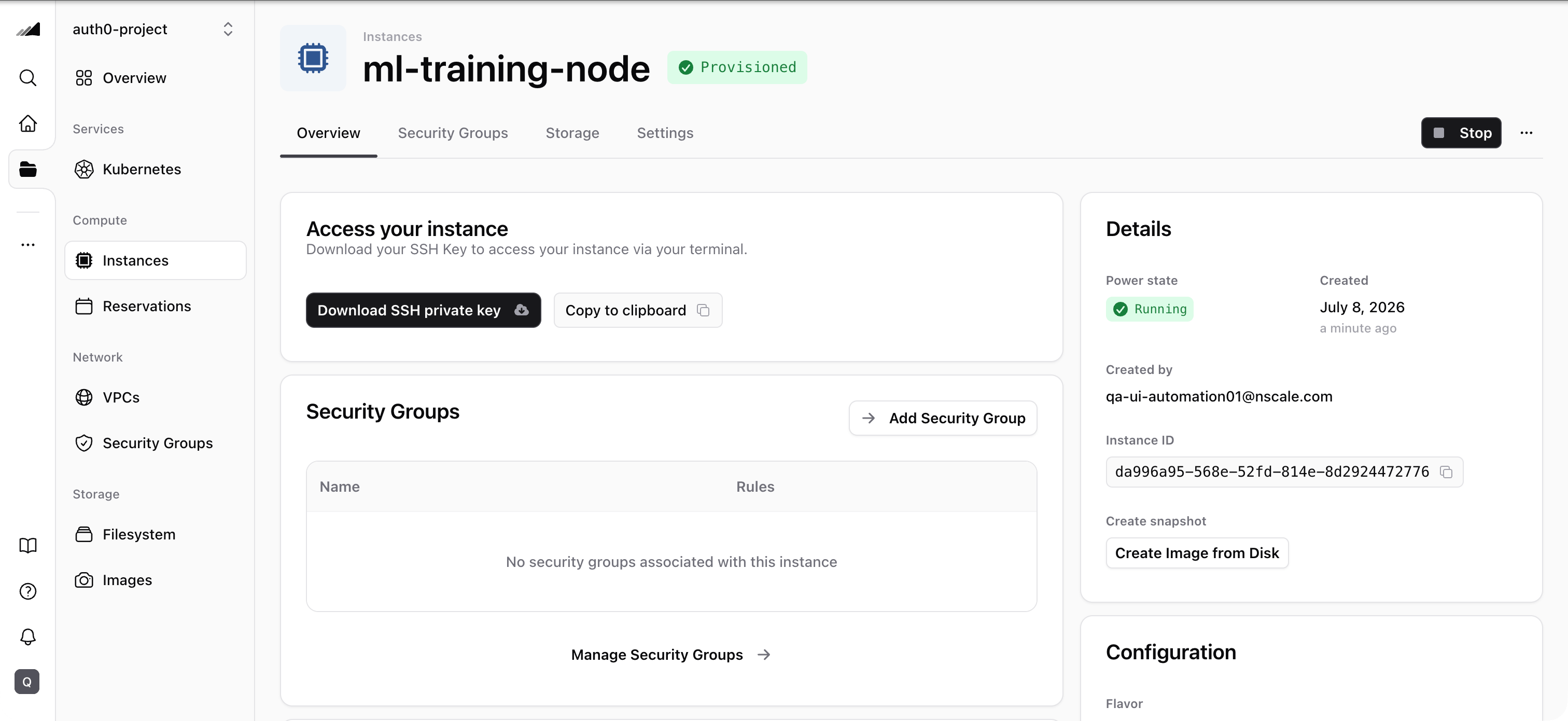
1. In the Console, open your project, then go to **Compute → Instances**
2. Choose the instance you want to take a snapshot of within the list and click on it to be redirected to the instance details page
3. Click on **"Create image from disk"** in the details section on the right side
4. A point-in-time copy of your instance is created and will be added to the list of snapshots and images
 ### Creating an instance from a snapshot
1. In the Console, open your project, then go to **Compute → Instances**
2. Click **New Instance** and fill in the basic details (name, project) and networking (VPC, security group)
3. In the **Configure your instance** section, select **Snapshot** as the image source
4. Choose the snapshot you want to use from the list — make sure the **region matches** the region where the snapshot was created
5. Complete the remaining configuration and click **Create instance**
If you don't see your snapshot in the list, check that the region selected for the new instance matches the region where the snapshot was created.
## Quotas
To check your current snapshot and image quota, go to the **Resource Usage** section on the **Dashboard**. The dashboard shows your usage alongside GPU, server, cluster, network, and filesystem quotas.
### Common Issues / Troubleshooting
* **Symptom:** You don't see the expected snapshot in the **Create instance** flow when selecting a snapshot.
**Likely cause:** The snapshot is **region-scoped**, and the snapshot was created in a **different region** than the one selected for the new instance.
**Fix:** In the instance creation flow, confirm the **Region** selection matches the region where the snapshot was created. If needed, restart the flow and select the correct region, then check the snapshot list again.
* **Symptom:** Snapshot creation seems to hang or take a long time.
**Likely cause:** The instance disk is large or the instance was running during the snapshot.
**Fix:** For large disks, allow more time. For the most consistent results, stop the instance before taking a snapshot.
***
## Related Resources
Create instances from snapshots or take snapshots of existing instances
Upload your own OS images instead of using snapshots
Manage snapshots programmatically via the Compute API
### Creating an instance from a snapshot
1. In the Console, open your project, then go to **Compute → Instances**
2. Click **New Instance** and fill in the basic details (name, project) and networking (VPC, security group)
3. In the **Configure your instance** section, select **Snapshot** as the image source
4. Choose the snapshot you want to use from the list — make sure the **region matches** the region where the snapshot was created
5. Complete the remaining configuration and click **Create instance**
If you don't see your snapshot in the list, check that the region selected for the new instance matches the region where the snapshot was created.
## Quotas
To check your current snapshot and image quota, go to the **Resource Usage** section on the **Dashboard**. The dashboard shows your usage alongside GPU, server, cluster, network, and filesystem quotas.
### Common Issues / Troubleshooting
* **Symptom:** You don't see the expected snapshot in the **Create instance** flow when selecting a snapshot.
**Likely cause:** The snapshot is **region-scoped**, and the snapshot was created in a **different region** than the one selected for the new instance.
**Fix:** In the instance creation flow, confirm the **Region** selection matches the region where the snapshot was created. If needed, restart the flow and select the correct region, then check the snapshot list again.
* **Symptom:** Snapshot creation seems to hang or take a long time.
**Likely cause:** The instance disk is large or the instance was running during the snapshot.
**Fix:** For large disks, allow more time. For the most consistent results, stop the instance before taking a snapshot.
***
## Related Resources
Create instances from snapshots or take snapshots of existing instances
Upload your own OS images instead of using snapshots
Manage snapshots programmatically via the Compute API